How to Force Close or Force on Windows
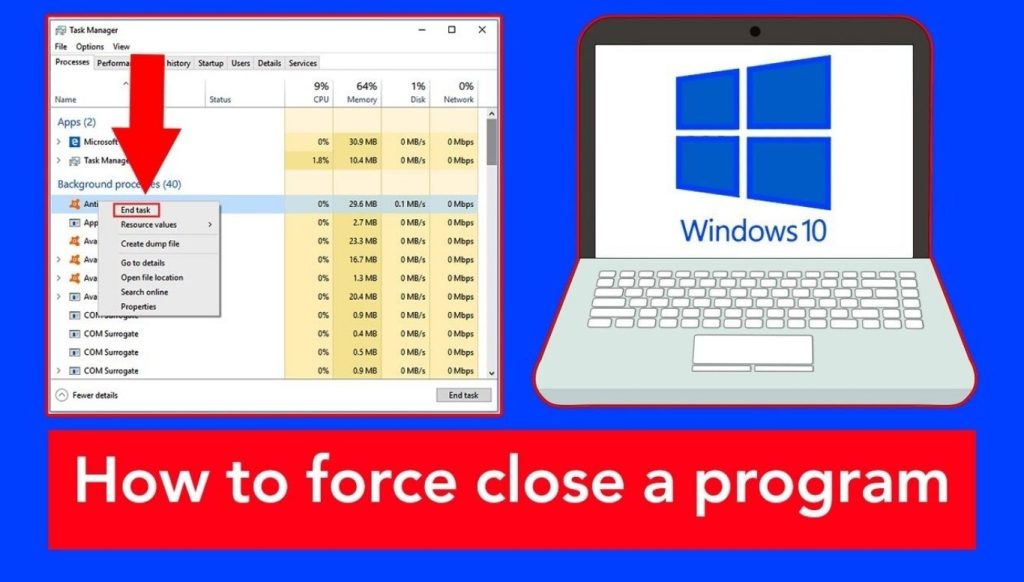
To force close a program on Windows, press Ctrl + Shift + Esc to open Task Manager, select the unresponsive app under the Processes tab, then click End Task. This method, often called “force quit,” closes an application that has stopped responding within a few seconds, without needing a full system restart.
This guide covers four ways to force-close a program on Windows, ordered from fastest to most advanced.
When to Force Close a Program
A program needs to be force-closed when it stops responding to clicks, keyboard input, or the close button. Windows usually labels this state “Not Responding” in Task Manager. Common causes include insufficient memory, a stuck background process, or a conflict with another running application.
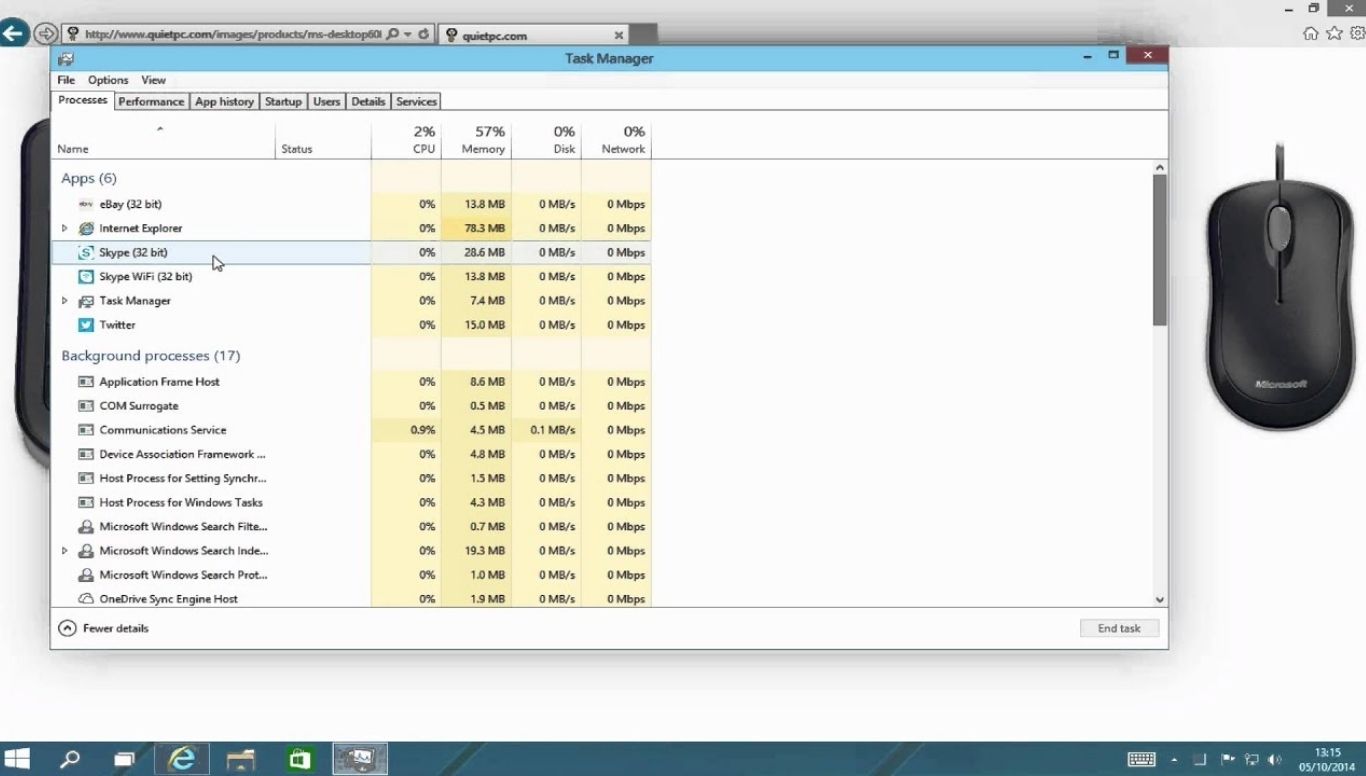
Method 1: Task Manager
Task Manager is the most direct way to force-close a program on Windows.
- Press Ctrl + Shift + Esc to open Task Manager directly.
- Select the Processes tab.
- Locate the program marked “Not Responding.”
- Right-click the program and select End Task.
Task Manager can also be opened by pressing Ctrl + Alt + Delete and selecting Task Manager from the menu or by right-clicking the taskbar and choosing Task Manager.
Method 2: Keyboard Shortcut
Alt + F4 closes the active window immediately and works without opening any menu.
- Click the frozen window to make it the active window.
- Press and hold Alt, then tap F4.
- Release both keys.
Alt + F4 sends a close request to the active window only. If no window is active, this shortcut opens the Shut Down Windows dialog instead, so pressing Esc or Cancel returns to the desktop safely.
Method 3: Command Prompt
Command Prompt offers a reliable option when Task Manager is slow to respond.
- Press Windows key + R to open the Run dialog.
- Type cmd and press Enter.
- Type “tasklist” and press Enter to view all running processes.
- Identify the process name, such as chrome.exe.
- Type taskkill /f /im processname.exe, replacing “processname.exe” with the actual file name.
This method works even when the graphical interface becomes unresponsive, since Command Prompt operates independently of the desktop environment.
Method 4: Settings Menu
Windows 10 and Windows 11 include a force-stop option inside Settings.
- Open Settings and go to Apps.
- Locate the unresponsive app in the list.
- Select the app, then choose “Terminate” or “Advanced” options, followed by Terminate.
This method suits users who prefer a visual interface over keyboard shortcuts or command-line tools.
Comparing the Four Methods
| Method | Speed | Best Used For |
|---|---|---|
| Task Manager | Fast | General use, most reliable for beginners |
| Alt + F4 | Fastest | Single frozen window with an active focus |
| Command Prompt | Moderate | When Task Manager fails to open |
| Settings menu | Moderate | Visual interface without shortcuts |
What to Do if Force Closing Fails
If none of these methods close the program, a full system restart resolves most remaining cases. Holding the physical power button for several seconds forces a shutdown when the system itself has stopped responding, not just a single application.
Frequently Asked Questions
What is the fastest way to force-close a program on Windows?
Alt + F4 is the fastest way to force close a program, since it sends an immediate close request to the active window without opening any additional menu.
How do I open Task Manager to force close an app?
Press Ctrl + Shift + Esc to open Task Manager directly, then select the unresponsive app under the Processes tab and click End Task.
What does “Not Responding” mean in Task Manager?
“Not Responding” means the program has stopped processing input from the keyboard or mouse, usually due to a stuck process or insufficient system memory.
Can I force-close a program using Command Prompt?
Yes, typing taskkill /f /im processname.exe in Command Prompt forces a specific program identified by its process name.
Is force-closing a program safe? Force closing is generally safe, though any unsaved data in the closed program will be lost since the app does not get a chance to save before shutting down.
What is the difference between force quit and force close on Windows?
Force quit and force close describe the same action on Windows: terminating an application that has stopped responding to normal input.
Why does Alt + F4 sometimes open a shutdown screen instead of closing an app?
Alt + F4 opens the Shut Down Windows dialog when no application window is active, since the shortcut then targets the desktop itself rather than a program.
Reviewed and published by Sidra Azeemi for DomainAgeChecker, a UK-based platform providing free SEO and content tools for webmasters and digital marketers. Read more on the About Us page.