Typing “myncedcloud” into Google usually means one thing: something on the login screen just broke. A password that suddenly stops working, an MFA code that will not accept, an “invalid request” message that appears out of nowhere. This guide skips the general background and goes straight to what actually fixes these problems in 2026, then covers the account setup and security details that explain why they happen in the first place.
MyNCEdCloud is the single sign-on portal for North Carolina’s K-12 public schools, reached at my.ncedcloud.org. It does not store grades or records. It only verifies who a user is and hands them off to the applications their school has approved, from learning platforms to state testing tools.
Why the Login Screen Rejects You (Even With the Right Password)
Most myncedcloud errors are not password problems, even though they look like one at first glance.
- “The request is invalid” almost always means the login screen was reached through a bookmark, a saved link, or the browser back button instead of a fresh visit to my.ncedcloud.org.
- A correct password that still blocks access usually points to an MFA step that has not been completed or set up yet, not a wrong password.
- A missing application icon means the account itself works fine. The gap is in role or provisioning, not authentication.
Separating these three causes before troubleshooting saves a lot of wasted password resets.
Most school IT teams see the same pattern every week. A user resets their password twice, tries three different browsers, and the actual issue was a bookmark the whole time. Knowing which of these three buckets an error falls into before doing anything else cuts troubleshooting time down significantly.
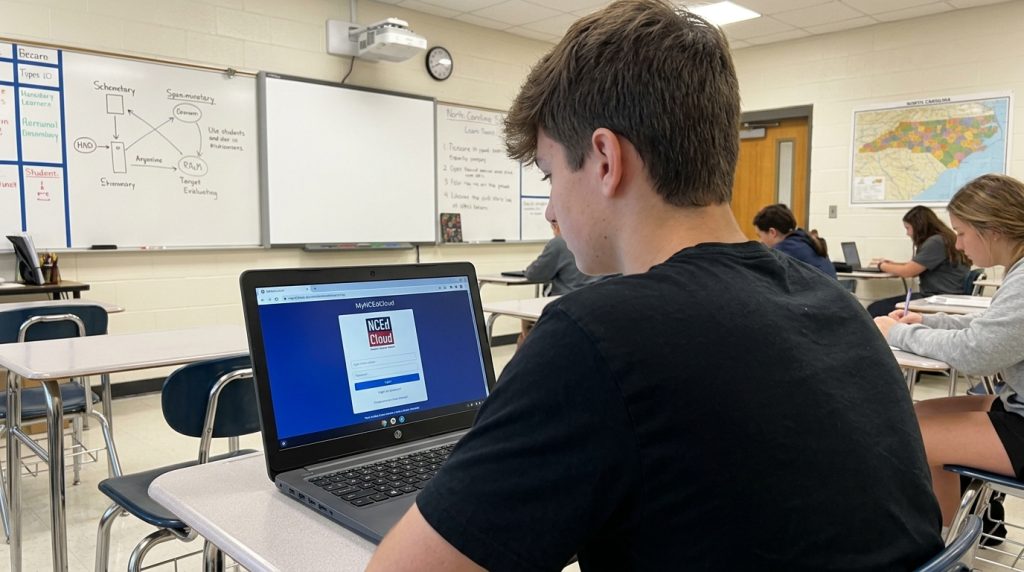
Logging In the Right Way
- Type my.ncedcloud.org directly into the browser address bar.
- Enter the assigned NCEdCloud username.
- Select Go.
- Enter the account password.
- Complete MFA if the account requires it.
- Open the needed tool from the Applications page.
Starting from a fresh address bar entry, rather than a saved link, avoids the invalid-request error almost entirely.
This sounds simple, but it is the single most skipped step. Browsers auto-suggest the last visited login page, and clicking that suggestion often lands on a stale session instead of a clean one. Typing the address out fully, even when a suggestion appears, resets that session properly.
Claiming an Account for the First Time
Staff
New employees select “Claim My Account” on the login screen, enter identifying details, pass a verification check, set a password, and answer challenge questions. The system then shows the assigned username, and MFA setup usually follows on the next login.
Claiming fails most often because of a mistyped birth date, an incorrect UID, a password that does not meet policy, incomplete challenge answers, or an account that is already marked claimed.
An account marked as already claimed is the trickiest case. It usually means someone else in the household or building claimed it earlier, sometimes by mistake. The fix is not to try claiming again. It is to contact the school or district technology office directly, since only they can unlock or reset a claim status.
Students in Grades 6 to 12
These students can self-claim using a student number, grade, birth date in YYYYMMDD format, and their school’s PSU code.
Students in PK-5
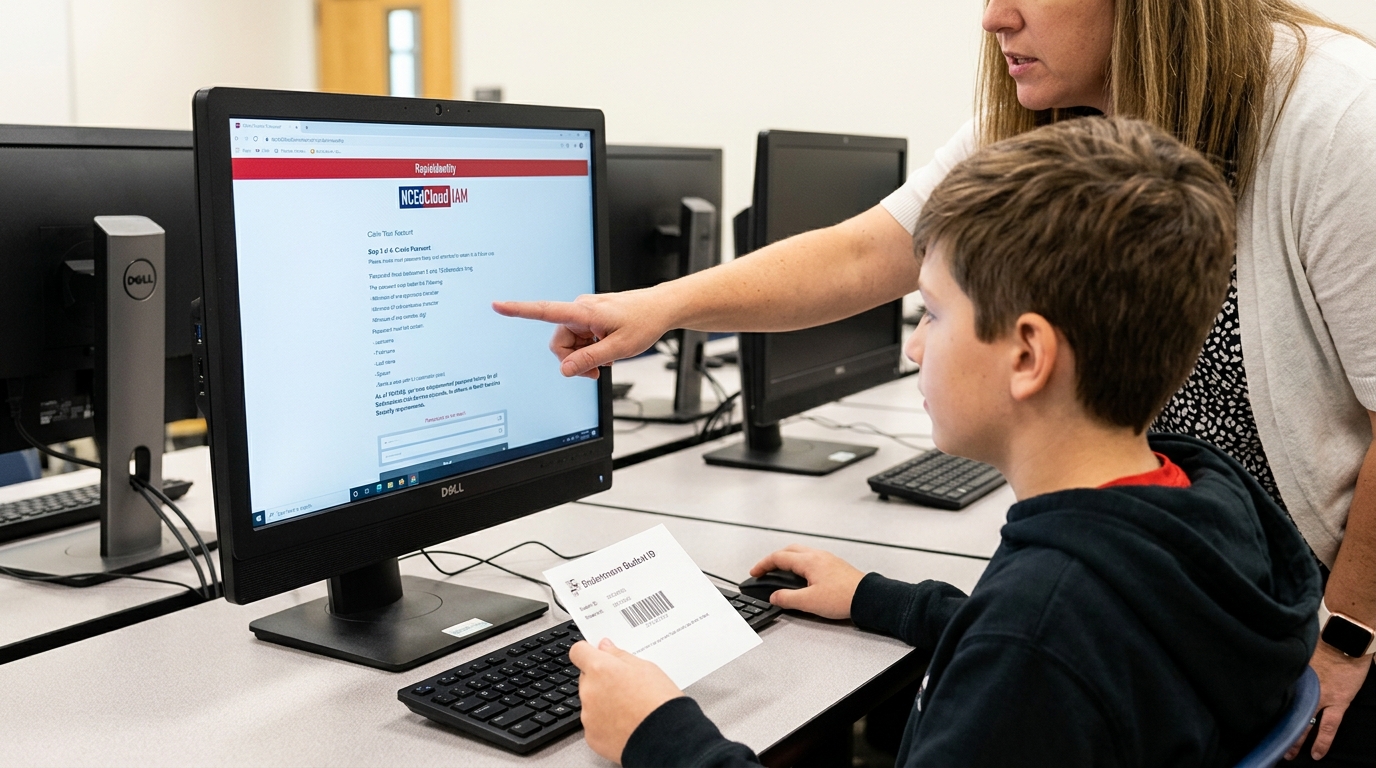
Younger students skip self-claiming entirely. Schools issue credentials directly, and QR badges give an alternative that avoids typing a username and password.
MFA Rules for 2026
Multi-factor authentication has been mandatory for every employee account statewide since July 1, 2026. Two options meet the requirement:
- TOTP, a time-based code generated through Google Authenticator, Microsoft Authenticator, or a compatible browser authenticator.
- WebAuthn, which works with Apple Touch ID or Face ID, Windows Hello, Android biometrics, or a hardware key such as a YubiKey.
If a password is accepted but access still stops, check MFA setup before anything else.
The statewide rollout also means older workarounds no longer apply. Accounts that previously skipped MFA because of a role exemption were phased out through mid-2026, so any guidance suggesting MFA is optional for certain staff types is outdated. Every employee account now goes through the same requirement, regardless of role or building.
QR Badges for PK-5 Students: One Detail Most Guides Skip
QR badges let younger students scan in instead of typing credentials. The detail that trips up a lot of staff: resetting a student’s password can invalidate the existing badge. If a badge suddenly stops scanning right after IT resets a password, the fix is a fresh printout, not a camera or browser check.
Login Problems and Fast Fixes
| Problem | Likely Cause | Fix |
|---|---|---|
| “The request is invalid.” | Reached login through a bookmark or back button | Start over at my.ncedcloud.org |
| Password rejected | Wrong credentials or account issue | Verify details or use password recovery |
| Account will not claim | Wrong UID, birth date, or status | Recheck entries, contact school IT |
| MFA code fails | Wrong authenticator account or device clock drift | Confirm the right TOTP entry, sync device time |
| QR badge stops working | Password was recently reset | Ask staff to reprint the badge |
| Application icon missing | Role or provisioning issue | Ask IT to check access, not reset the password |
| Login fails for many users at once | Service-wide issue | Check the official NCEdCloud status page |
Resetting a Password the Right Way
- Go to my.ncedcloud.org and choose the password-reset option.
- Answer the security questions set up during account claiming.
- Create a password that meets the platform’s policy.
- Log back in and complete MFA if required.
Employees who cannot self-reset should contact school or district IT, since certain help-desk roles carry recovery permissions. Students, especially younger ones, typically go through a teacher or school help desk rather than a self-service option.
What Shows Up on the Applications Page
The page a user lands on after login lists only what their role, school, and district have connected. Typical categories:
- Learning management platforms for coursework and assignments
- Tools tied to the state’s student information system
- State and district testing platforms
- Communication tools between staff, students, and families
- Administrative and reporting systems for staff roles
Two students in the same grade at different schools can see completely different icons, since each district configures its own integrations.
This is also why comparing setups between friends or siblings at different schools rarely helps. A missing icon on one account and a working one on another does not mean something is broken. It usually just reflects two different district configurations running on the same underlying system.
Three Things Most Guides Leave Out
Session timeouts log users out faster than expected. Sitting idle on the Applications page for too long can force a fresh login, which is often mistaken for an account error.
“NCEdCloud” and “myncedcloud” refer to the same system. The naming confusion sends a lot of searches to the wrong support pages, since NCEdCloud is the identity service and myncedcloud is simply how people refer to its login address.
Parents and guardians do not log in through this portal. Parent access to grades or records runs through a separate district-level parent portal, not my.ncedcloud.org, which is built for students and staff only.
Common Search Typos That Cause Login Confusion
Searches for “myncedloud,” “ncedcloud.org” without the “my,” and “ncedcloud login portal” all lead people away from the correct address. The only working entry point is my.ncedcloud.org, typed directly rather than found through a search result that may point to an outdated or cached page.
Browser and Device Checks Before Contacting IT
- Clear cache and cookies if the same error repeats after a correct password entry.
- Skip saved autofill passwords after a recent reset.
- Set the device clock to automatic, since drift breaks MFA codes.
- Use an updated browser, since older versions can misrender the MFA prompt.
- Turn off script or pop-up blocking extensions if MFA will not load.
MyNCEdCloud vs. NCSIS: Two Different Systems
MyNCEdCloud handles identity and access. It answers who a user is and what they can reach. North Carolina’s student-data system, NCSIS, handles the records behind enrollment, grades, and scheduling, and completed its move to Infinite Campus on July 1, 2025. A user may pass through myncedcloud to reach an NCSIS-connected tool, but the two never store the same information.
How Secure Is the Platform
MyNCEdCloud runs on account management, access-control management, and authentication standards aligned with the NIST Cybersecurity Framework and NIST 800-53 access controls, with automated provisioning and de-provisioning as roles change. Basic habits still matter:
- Never share a password or QR badge.
- Approve only MFA prompts triggered by an actual login attempt.
- Reach the portal only through my.ncedcloud.org, never a forwarded link.
- Report unexpected account activity to school IT right away.
Who This System Serves
- PK-5 students, through school-issued credentials or QR badges
- Grade 6-12 students, through self-claimed accounts
- Teachers and staff, through claimed employee accounts with mandatory MFA
- District and school administrators, with expanded access-management permissions
Each group follows a different setup path, so a fix for one rarely applies to another.
What Changed in 2026
Statewide employee MFA became mandatory on July 1, 2026, with both TOTP and WebAuthn or passkey options available. North Carolina’s broader shift to Infinite Campus in 2025 also means any guidance still referencing PowerSchool is outdated.
FAQs
What is myncedcloud used for?
It is the single sign-on login portal that gives North Carolina K-12 students and staff access to approved school applications from one account.
How do I log in to myncedcloud?
Go directly to my.ncedcloud.org, enter your username, select Go, enter your password, and complete MFA if required.
What should I do if I forgot my myncedcloud password?
Use the account-recovery option on the login screen, or contact school IT support if recovery does not work.
Why is myncedcloud asking for an MFA code?
MFA has been mandatory for every employee account since July 1, 2026, and the system accepts both TOTP and WebAuthn.
Can elementary students log in to myncedcloud with a QR code?
Yes, PK-5 students can scan a school-issued QR badge, though individual schools can opt out for specific grades.
Why can I log in but not see a specific application?
A missing application points to a role, enrollment, or provisioning issue, since a successful login already confirms the credentials work.
Is myncedcloud the same as NCEdCloud?
Yes, myncedcloud is simply the login address for the NCEdCloud identity and access management service, not a separate system.
Conclusion
Start every myncedcloud issue at my.ncedcloud.org, typed fresh rather than reached through a saved link. Match the login method to the actual role involved, rule out MFA before touching the password, and treat a missing application as a school IT question rather than a login failure.
Most login trouble on this platform traces back to one of a handful of repeat causes, not a broken system. A bookmark instead of a fresh address, an MFA step skipped instead of set up, a QR badge that needed reprinting after a password change. Once these patterns are familiar, most issues take a couple of minutes to resolve instead of a full help-desk ticket.
For anyone managing multiple student or staff accounts, keeping this troubleshooting order in mind saves real time across a school year. Check the cause category first, apply the matching fix, and only escalate to school or district IT when the issue falls outside these common patterns. That approach keeps small login hiccups from turning into lost instructional time.