Every system you use speaks a different data language. Your CRM might expect JSON, your legacy ERP outputs flat CSV files, and your partner’s platform only accepts XML. File content conversion is the process that bridges these gaps. It takes data from one format and reshapes it into another, so different systems can exchange information without breaking.
This guide explains how file content conversion works, which formats and methods you will run into, and how to avoid the mistakes that cause failed transfers and corrupted data.
What Does File Content Conversion Actually Mean?
File content conversion is the process of transforming the structure or format of a file’s data so a different system, application, or platform can read it correctly. It goes beyond simply renaming a file extension. The conversion process reads the source file, interprets its structure, maps each field to a new format, and writes the result as a new file.
Common examples include:
- Converting a flat CSV or TXT file into structured XML or JSON
- Transforming XML back into a delimited flat file for legacy systems
- Reformatting fixed-width text files into a database-ready structure
- Mapping data fields between two different schemas during a system migration
This process shows up most often in enterprise integration platforms, such as SAP PI/PO, where the File Adapter uses a built-in content conversion feature to translate flat files into XML messages and back again without writing custom code for every exchange.
Why Businesses Rely on File Content Conversion
Companies exchange purchase orders, invoices, shipping records, and customer data across dozens of systems every day, and each system often expects a different structure. Without a conversion layer, teams would need to manually reformat every file, which is slow and error-prone.
A solid conversion process gives you:
- Faster processing. Automated rules turn a manual, hours-long task into a job that finishes in seconds.
- Fewer errors. Defined rules catch mismatched fields and bad formatting before the file reaches its destination.
- Cleaner integrations. Systems built by different vendors can exchange data without custom development for every connection.
- Easier scaling. You can process thousands of files a day without adding manual work.
- Audit-ready records. Standardized formats make it easier to meet compliance and reporting requirements.
How the Conversion Process Works
Most file content conversion follows the same core sequence, whether you do it manually, through a script, or with an integration platform:
- Read the source file. The system opens the file and identifies its raw structure, whether that’s comma-separated values, fixed-width columns, or a delimited flat file.
- Define the record structure. You map out which fields exist, in what order, and how each one is separated (commas, tabs, fixed character lengths, and so on).
- Set the encoding. Character encoding (UTF-8, ISO-8859-1, and similar) must match between source and target, or you will end up with garbled text and broken special characters.
- Apply the transformation rules. The conversion engine maps each source field to its target format, following the rules you defined.
- Generate the output file. The system writes the transformed data into the target format, such as XML, JSON, or a new flat file.
- Validate the result. Before you trust the output, test it against real sample data, including edge cases like empty fields, special characters, and unusually large records.
Manual, Automated, and Mapped Conversion
You generally have three ways to handle file content conversion:
- Manual conversion: Someone opens the file and rewrites or reformats it by hand. This works for small, one-off files, but it does not scale and invites human error on anything larger.
- Automated conversion: Scripts or built-in adapter tools handle the transformation based on predefined rules. This is the standard approach for recurring, high-volume conversions.
- Data mapping: Used for complex conversions where source and target structures differ significantly. You define an explicit mapping between fields, including validation and default values for missing data.
Most production environments rely on automated conversion backed by a clear data mapping document, since it removes the guesswork and keeps the process repeatable.
Common File Formats You Will Convert Between
- CSV and TXT to XML or JSON: The most frequent conversion, used to bring flat legacy data into modern, structured systems.
- XML to CSV or flat file: Common when a structured message needs to reach an older system that only accepts delimited text.
- Fixed-width to delimited: Legacy mainframe exports often use fixed character positions instead of delimiters, which need remapping before modern tools can read them.
- Database exports to structured formats: Used during migrations, when data moves from one database schema to another.
Tools Used for File Content Conversion
Depending on your setup, you might use:
- Enterprise integration platforms such as SAP PI/PO, which include native File Adapter functionality for content conversion between flat files and XML.
- Scripting languages, particularly Python, for custom conversion logic when off-the-shelf adapters don’t fit your exact use case.
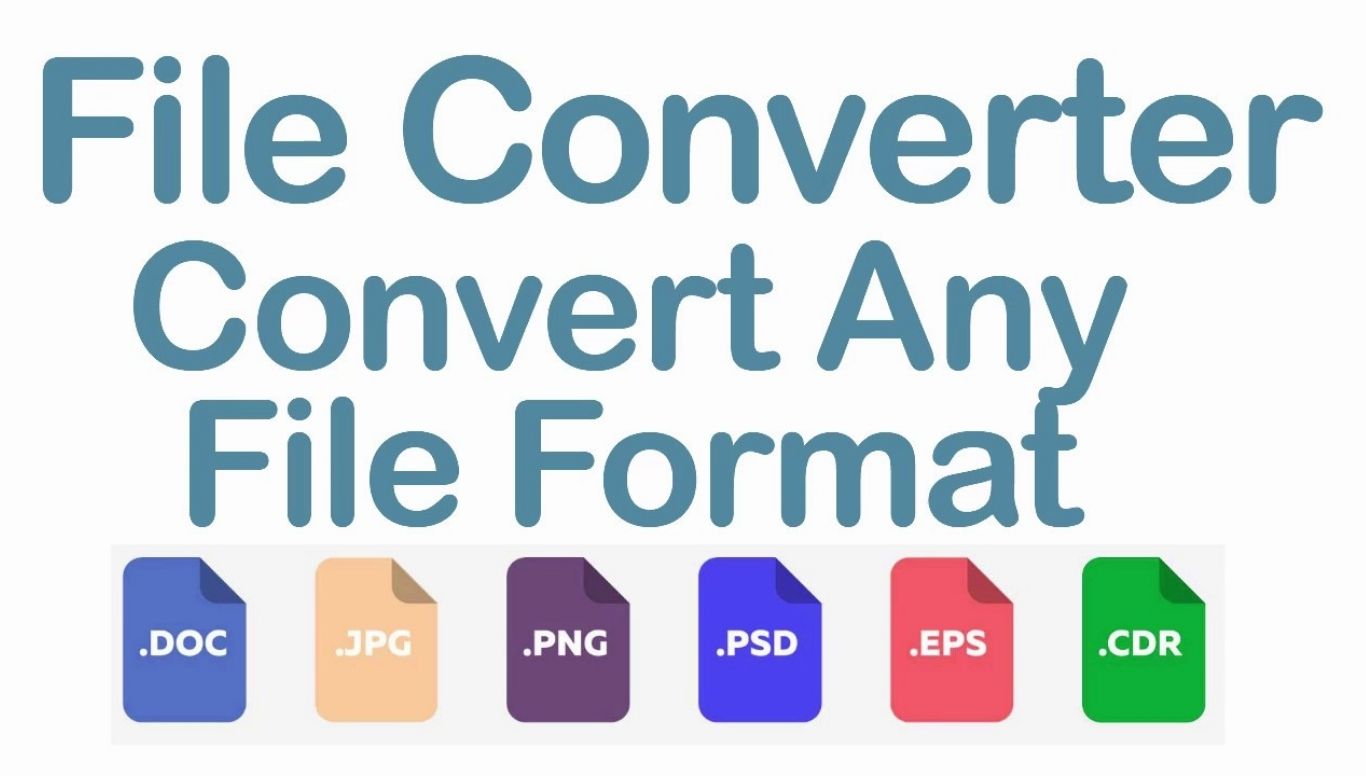
- Dedicated file converter tools, useful for one-off or lower-volume conversions between common formats like documents, spreadsheets, and images.
- ETL (Extract, Transform, Load) platforms, which combine conversion with broader data pipeline management for large-scale migrations.
Common Mistakes That Break File Content Conversion
- Mismatched encoding. This is the single most common cause of garbled text and broken characters. Always confirm that the source and target use the same encoding.
- Delimiter conflicts. If a field’s actual data contains the same character you use as a delimiter, the conversion misreads the record structure.
- Skipping validation. Never deploy a new conversion configuration without testing it against real production-like data, including edge cases.
- Ignoring oversized files. Very large files can time out or exceed memory limits if the conversion process wasn’t built to handle them in batches.
- Missing or malformed fields. A single missing field can shift every subsequent field in a flat file, corrupting the entire record.
Best Practices for Reliable Conversion
- Document your record structure and field mapping before you configure anything.
- Test with real sample files, not just clean, ideal-case data.
- Set clear rules for how the system should handle missing or extra fields, rather than letting it fail silently.
- Monitor conversion jobs in production and log failures, so you catch problems before they affect downstream systems.
- Review and update your mapping whenever a source or target system changes its structure.
Frequently Asked Questions
1. What is file content conversion in simple terms?
It’s the process of changing a file’s format or structure, such as turning a CSV file into XML, so a different system can read and use the data correctly.
2. Is file content conversion the same as changing a file extension?
No. Changing a file extension only renames the file. File content conversion actually reads the data, reshapes its structure, and writes a new file that matches the target format’s rules.
3. What file formats are most commonly converted?
CSV, TXT, XML, and JSON come up most often, along with fixed-width flat files used by legacy systems.
4. What causes most file content conversion errors?
Mismatched character encoding and delimiter conflicts cause the majority of failures, followed by missing or malformed fields in the source file.
5. Can file content conversion be automated?
Yes. Most production environments automate this process using integration platforms, adapter modules, or scripts, since manual conversion doesn’t scale for high-volume data.
6. Do I need coding skills to perform file content conversion?
Not always. Enterprise platforms like SAP PI/PO offer built-in adapters that handle conversion through configuration rather than code. Complex or custom conversions may still require scripting.
7. How do I test whether a file content conversion setup works correctly?
Run it against real sample files that include edge cases, such as empty fields, special characters, and maximum-length records, then compare the output against the expected structure before deploying it to production.